
8Digits Factura for Woocommerce Documentation
Everything you need to set up automatic PDF invoicing for your WooCommerce store — compliant with Spain's invoicing regulations.
Introduction
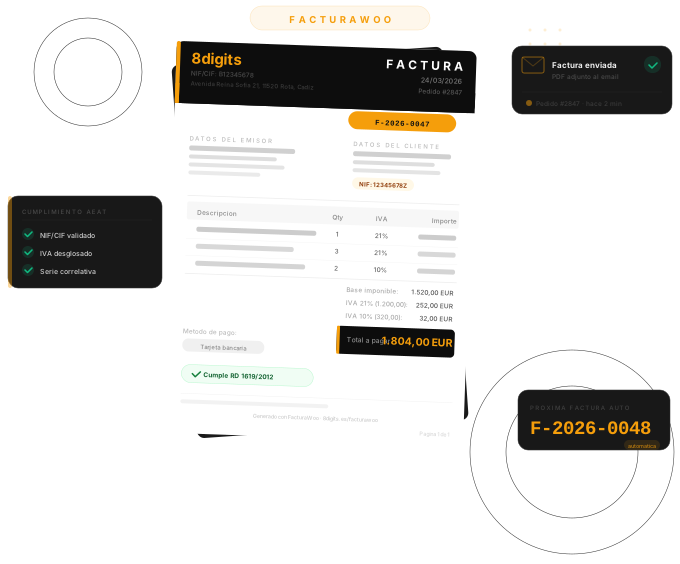
8Digits Factura for Woocommerce automatically generates legal PDF invoices for every WooCommerce order. Each invoice is assigned a sequential number, includes a full VAT (IVA) breakdown, and is attached to the customer's email — all without any manual work on your part.
Automatic Invoices
Invoices are generated the moment an order reaches the status you choose — no clicks required.
Sequential Numbering
Legally required sequential numbering per series and year, with a format like F-2025-0001.
Legal PDF
Every invoice includes all mandatory fields per Real Decreto 1619/2012 — issuer, customer, NIF, IVA breakdown, totals.
Email Delivery
The invoice PDF is automatically attached to WooCommerce's order confirmation email.
Requirements
| Component | Minimum version |
|---|---|
| WordPress | 6.0 or later |
| WooCommerce | 7.0 or later |
| PHP | 8.0 or later |
| MySQL / MariaDB | 5.6 / 10.0 or later |
Installation
From the WordPress Plugin Directory
- Open Plugins → Add New in your WordPress admin.
- Search for "8Digits Factura for Woocommerce" and click Install Now on the result.
- Click Activate once the installation completes.
- Go to 8Digits Factura for Woocommerce → Settings and fill in your company details.
Manual Installation
- Download the plugin
.zipfile from WordPress.org or your account at 8digits.es. - Go to Plugins → Add New → Upload Plugin and select the
.zip. - Click Install Now, then Activate Plugin.
- Go to 8Digits Factura for Woocommerce → Settings and fill in your company details.
Quick Start
You can be up and running in under five minutes:
- Enter your company details Go to 8Digits Factura for Woocommerce → Settings → Seller Information and fill in your company name, NIF/CIF, and address. This data appears on every invoice.
-
Set your invoice prefix
Under Invoice Settings, set a prefix for your invoice numbers (e.g.
F). The default isF, producing numbers likeF-2025-0001. - Choose the trigger status Select which WooCommerce order status should automatically generate an invoice. The default is Processing, which covers most stores.
- Save settings Click Save Changes. The next order that reaches your chosen status will automatically receive a PDF invoice.
-
Test with a sample PDF
Visit
yoursite.com/wp-admin/?8Digits Factura for Woocommerce_test_pdf=1to preview a sample invoice using your current settings (requires admin access).
Seller Information
These fields appear in the Issuer block on every PDF invoice. They are required for legal compliance.
| Field | Description | Required? |
|---|---|---|
| Company Name | Your legal company or trading name. | Yes |
| NIF / CIF | Your Spanish tax identification number. Validated automatically. | Yes |
| Address | Street name and number. | Yes |
| Postal Code | 5-digit Spanish postal code. | Yes |
| City | City name. | Yes |
| Province | Selected from the full list of 52 Spanish provinces. | Yes |
| Teléfono | Contact phone number (optional — does not appear on invoice by default). | No |
| Contact email (optional — does not appear on invoice by default). | No |
Invoice Settings
Invoice Prefix
The prefix appears at the start of every invoice number, followed by the year and a zero-padded sequence: PREFIX-YYYY-NNNN.
Example: a prefix of F produces F-2025-0001, F-2025-0002, and so on.
- Only letters, numbers, and hyphens are allowed.
- The prefix
RCis reserved for credit notes. - Changing the prefix mid-year starts a new counter for that prefix. Previous invoices keep their original numbers.
Starting Sequence Number
If you are migrating from another invoicing system, you can set the starting number for the current year's sequence so that numbering continues from where you left off.
Default VAT Rate
The default IVA rate applied when a WooCommerce tax class cannot be resolved. The default value is 21%. Common Spanish rates:
- 21% — Standard rate (most goods and services)
- 10% — Reduced rate (food, passenger transport, hospitality)
- 4% — Super-reduced rate (basic foodstuffs, books, medicines)
- 0% — Exempt operations
8Digits Factura for Woocommerce reads the tax rates configured in WooCommerce. The default rate is only used as a fallback.
Email Attachment
When enabled, 8Digits Factura for Woocommerce automatically attaches the invoice PDF to the customer-facing WooCommerce email for the order.
| Setting | Description |
|---|---|
| Attach PDF to emails | Toggle on/off. When on, the invoice PDF is attached to the matching WooCommerce customer email. |
By default, the PDF is attached to the Processing Order y Completed Order customer emails. The attachment only goes out once the invoice has been generated.
Trigger Statuses
A trigger status is the WooCommerce order status that causes 8Digits Factura for Woocommerce to automatically generate an invoice. You can enable one or more statuses.
| Status | Typical use case |
|---|---|
| Processing (default) | Payment received, order being fulfilled. Recommended for most stores. |
| Completed | Order fully delivered. Useful for services or digital products. |
| On Hold | Awaiting manual payment confirmation (e.g. bank transfer). |
| Any custom status | Any custom WooCommerce order status you have registered will appear in the list. |
Invoice List
Go to 8Digits Factura for Woocommerce in the WordPress admin menu to see the full list of generated invoices.
Columns
| Column | Description |
|---|---|
| Invoice # | The full invoice number (e.g. F-2025-0042). Sortable. |
| Order | WooCommerce order number, links to the order. Sortable. |
| Customer | Billing name and email. |
| Series | The invoice series prefix. |
| Date | Invoice generation date. Sortable. |
| Total | Grand total including VAT. Sortable. |
| IVA | Total VAT amount. |
| Status | Current invoice status (Generated, Sent, Void, Rectified). |
| Actions | Download PDF, regenerate, void. |
Filters
Use the filter bar at the top of the list to narrow results by:
- Search — by invoice number or order number
- Status — Generated, Sent, Void, Rectified
- Series — filter by invoice series prefix
- Date range — from/to date picker
Status Indicators
| Status | Meaning |
|---|---|
| Generated | Invoice was created and PDF is available. |
| Sent | Invoice email was sent to the customer. |
| Void | Invoice has been manually voided. The PDF is retained for audit purposes. |
| Rectified | A credit note has been issued against this invoice (Pro). |
Order Meta Box
When you open any WooCommerce order in the admin, a 8Digits Factura for Woocommerce panel appears on the right-hand side. It shows:
- Invoice number and generation date
- A button to download the PDF
- A button to resend the invoice email to the customer
- A button to manually generate an invoice (if one has not been generated yet)
Manual Invoice Generation
For orders that were placed before the plugin was installed, or for orders that were not on a trigger status, you can generate an invoice manually.
- Open the order in WooCommerce → Orders.
- Find the 8Digits Factura for Woocommerce panel on the right side of the screen.
- Click "Generate Invoice". The invoice number and date will appear immediately.
Downloading PDFs
From the Invoice List
Click the download icon in the Actions column next to any invoice. The PDF will download immediately.
From the Order Meta Box
Open the order and click Download PDF in the 8Digits Factura for Woocommerce panel.
If the PDF is Missing
If a PDF file was accidentally deleted from the server, 8Digits Factura for Woocommerce will automatically regenerate it on the next download request using the stored invoice data. You can also regenerate it manually from the invoice list using the Regenerate PDF action.
Voiding Invoices
Voiding marks an invoice as cancelled. The invoice record and PDF are retained for your accounting records — they are not deleted.
- Go to 8Digits Factura for Woocommerce in the admin menu.
- Click the Void action next to the invoice you want to cancel.
- Confirm the action. The status will change to Void.
Bulk Actions
Select multiple invoices using the checkboxes in the invoice list, then choose an action from the Bulk Actions dropdown:
| Action | Description |
|---|---|
| Download ZIP | Packages all selected PDFs into a single .zip file and downloads it. |
| Export CSV | Exports invoice data (number, order, customer, date, total, IVA, status) to a spreadsheet-compatible CSV file. |
| Regenerate PDFs | Regenerates PDF files for all selected invoices. |
| Void | Voids all selected invoices at once. |
| Resend Emails | Resends the invoice email to the customer for each selected invoice. |
Credit Notes Pro
A credit note (factura rectificativa) is a legally required corrective document when you need to cancel or modify an issued invoice. 8Digits Factura for Woocommerce Pro generates compliant credit notes per Articles 13 and 15 of Real Decreto 1619/2012.
How to Generate a Credit Note
- Open the WooCommerce order that has the invoice you want to rectify.
- Click "Generate Credit Note" in the 8Digits Factura for Woocommerce panel.
- Select the reason for the rectification (required by law).
- Choose the rectification type — Full or Partial.
- Confirm. The credit note is generated, a PDF is created, and a notification email is sent to the customer.
Rectification Types
| Type | When to use | How amounts appear |
|---|---|---|
| Full (Sustitución) | The entire original invoice is cancelled and replaced. | All amounts shown as negative values. |
| Partial (Diferencias) | Only part of the original invoice is corrected. | Only the difference amounts are shown. |
Rectification Reasons
Select one of the predefined legal reasons, or enter your own:
- Error in recipient data
- Merchandise return
- Return of containers and packaging
- Subsequent discount or bonus
- Error in the applied tax rate
- Other (free text)
Credit Note Numbering
Credit notes receive their own sequential series with the prefix RC, e.g. RC-2025-0001. This prefix is reserved and cannot be used for regular invoices.
What Is Stored
The credit note record stores a reference to the original invoice number, date, and reason — as required by law for the audit trail.
B2B Checkout Fields Pro
When enabled, 8Digits Factura for Woocommerce Pro adds two additional fields to the WooCommerce checkout billing section:
| Field | Description |
|---|---|
| Company Name (Razón social) | The customer's legal company name. Optional. |
| NIF / CIF / NIE | The customer's Spanish tax ID. Can be made required. |
NIF Validation
The NIF/CIF/NIE field is validated in real-time as the customer types, and again on the server when the order is placed. The validator supports:
- NIF — Spanish individuals (8 digits + control letter)
- NIE — Foreign nationals resident in Spain (X/Y/Z + digits + letter)
- CIF — Companies and organizations (letter + digits + control)
Making NIF Required
Under 8Digits Factura for Woocommerce → Settings → B2B, toggle Require NIF at checkout. Customers will not be able to complete their order without entering a valid NIF/CIF/NIE.
Where the Data Appears
- On the invoice PDF, in the customer billing block.
- In the WooCommerce order billing section.
- In the customer's My Account → Addresses for future orders.
Customer Portal Pro
8Digits Factura for Woocommerce Pro adds a My Invoices (Mis facturas) tab to the WooCommerce My Account page. Customers can view and download all their invoices without contacting you.
What Customers See
- A table listing all their invoices: number, type, order, date, total.
- A Download PDF button for each invoice.
- Credit notes are clearly marked as "Rectificativa" with a link to the original invoice.
- Pagination for customers with many invoices.
Security
Customers can only see and download invoices that belong to their own account. All download links are secured with time-limited nonces and verified against the order's customer ID.
Multiple Invoice Series Pro
If your business has multiple revenue streams, lines of business, or sales channels, you can define separate invoice series — each with its own prefix and independent sequential counter.
Examples:
F— Main sales invoicesS— Subscription invoicesW— Wholesale invoices
Setting Up Series
- Go to 8Digits Factura for Woocommerce → Settings → Invoice Series.
- Click Add Series and enter a prefix, name, and starting number.
- Save changes.
Assigning a Series to Orders
Series assignment can be automated using the 8Digits Factura for Woocommerce_invoice_series filter. For example, you can assign a series based on the product category, shipping method, or any order property.
Invoice Design Customization Pro
8Digits Factura for Woocommerce Pro gives you full control over the visual appearance of your PDF invoices.
Logo
Upload your company logo under Settings → Design → Logo. The logo appears at the top of every invoice. Recommended format: PNG or SVG, minimum 200 px wide.
Colors
Customize 10 individual color zones on the invoice:
- Background, header background, accent
- Body text, muted text
- Table header background, even/odd table row backgrounds, border
- Total row text
Font Sizes
Adjust font sizes for 6 elements independently: body text, invoice title, invoice number, table headers, total row, and footer.
Footer
Enable or disable the invoice footer, and enter custom footer text — for example, your payment terms, bank account number, or a legal notice.
Invoice Numbering
Format
Invoice numbers follow the format: PREFIX-YYYY-NNNN
- PREFIX — Your configured series prefix (default:
F) - YYYY — The four-digit year the invoice was issued
- NNNN — Zero-padded sequential number within that year and series
Examples: F-2025-0001, F-2025-0042, RC-2025-0003
Counters Reset Annually
Each series counter resets to 1 (or your configured starting number) at the beginning of each calendar year. This is standard practice in Spain — your invoices for 2026 will start at F-2026-0001 regardless of where your 2025 series ended.
Race Condition Protection
8Digits Factura for Woocommerce uses a database lock when assigning invoice numbers, ensuring that two simultaneous orders never receive the same number — even on high-traffic stores.
Legal Compliance
8Digits Factura for Woocommerce generates invoices that include all mandatory fields required by Real Decreto 1619/2012, the Spanish invoicing regulation:
| Mandatory Field | Where it comes from |
|---|---|
| Invoice number and series | Generated automatically by 8Digits Factura for Woocommerce |
| Issue date | Date the invoice was generated |
| Issuer name / company name | 8Digits Factura for Woocommerce → Settings → Seller Information |
| Issuer NIF / CIF | 8Digits Factura for Woocommerce → Settings → Seller Information |
| Issuer address | 8Digits Factura for Woocommerce → Settings → Seller Information |
| Customer name | WooCommerce order billing name |
| Customer NIF / CIF | WooCommerce order (manual or via B2B fields in Pro) |
| Customer address | WooCommerce order billing address |
| Description of goods / services | WooCommerce order line items |
| VAT rate and VAT amount | WooCommerce tax configuration |
| Total consideration | WooCommerce order total |
Credit Notes and Art. 13 RD 1619/2012
Credit notes generated by 8Digits Factura for Woocommerce Pro include all fields required by Article 13 of the regulation: reference to the original invoice number and date, the reason for rectification, and the rectification type (substitution or difference). This satisfies the requirements for a compliant factura rectificativa.
PDF Storage & Security
Where PDFs Are Stored
Invoice PDFs are saved in your WordPress uploads directory, organized by year and month:
wp-content/uploads/8Digits Factura for Woocommerce/
  └── 2025/
       ├── 01/  (January invoices)
       ├── 02/  (February invoices)
       └── ...
Direct Access Is Blocked
8Digits Factura for Woocommerce automatically creates an .htaccess file in the storage directory that blocks direct URL access to the PDF files. Invoices can only be downloaded through the secure download endpoint, which verifies your identity before serving the file.
Backup Recommendation
Include the uploads/8Digits Factura for Woocommerce/ folder in your regular WordPress backups. If a PDF is accidentally deleted, 8Digits Factura for Woocommerce can regenerate it from the stored invoice data — but it is good practice to keep backups regardless.
Download Links
All download links contain a time-limited security token (nonce). Links shared outside the system (e.g. by copy-pasting a URL) will expire. Always download invoices directly from the admin or from the customer portal.
Frequently Asked Questions
Troubleshooting
Invoices are not being generated automatically
- Check that the order status matches one of your configured trigger statuses under Settings → Invoice Settings → Trigger Statuses.
- Check that the order does not already have an invoice (only one invoice per order is generated automatically).
- Check your server's PHP error log for any errors from the
8Digits Factura for Woocommerceplugin.
The PDF is blank or has missing data
- Make sure all fields under Settings → Seller Information are filled in.
- Verify that WooCommerce tax settings are correctly configured.
- Visit
yoursite.com/wp-admin/?8Digits Factura for Woocommerce_test_pdf=1to preview a sample invoice and identify the missing element.
The customer portal tab is not visible
- Go to Settings → Permalinks and click Save Changes to regenerate rewrite rules.
- Ensure the customer is logged in to their account.
- Confirm that 8Digits Factura for Woocommerce Pro is active.
The PDF download gives a "403 Forbidden" or "File not found" error
- The download link may have expired. Go to the invoice list and click the download button there to generate a fresh link.
- If the PDF file was deleted, click Regenerate PDF from the invoice list first, then try downloading again.
- Check that your web server has write permissions on the
wp-content/uploads/8Digits Factura for Woocommerce/directory.
NIF validation is rejecting a valid NIF
- Check for a leading zero — Spanish NIFs are always 8 digits. If yours starts with a zero, make sure it is included (e.g.
01234567Z, not1234567Z). - For NIEs, the first character must be
X,YoZ(uppercase). - For CIFs, the first character is an organization letter (
A–H,J–N,P–W).
Getting More Help
- Free plan: WordPress.org support forum
- Pro plan: priority support via your account at 8digits.es
 Español
  English